
Check the Image and Title Before Sharing a Page
Inspect the public page metadata and image, then review the intended service preview. A real page example separates verified inputs from untested platform behavior.
 FounderOmni Editorial TeamPublished October 16, 2026Lead editor: Lin Qiao · AI Founder Voice Editor
Before sharing a page, check the title, description and image that the public URL supplies. Then inspect the preview on the service you intend to use. These are two different checks: correct page metadata gives the service useful inputs, while its actual preview shows what people may see.
You finish a product guide, open it on your website and see the right heading and artwork. Someone pastes its address into a social post, and the preview describes your homepage instead. The article itself may be fine. The small introduction traveling with the link needs attention.
For a founder or small team, this is a practical publishing check worth assigning to someone before a launch. Start with the exact public address. Do not assume that a good-looking CMS preview, a browser tab or a successful page response proves the sharing preview is ready.
Inspect what the public page supplies
A page's visible heading and its sharing metadata serve different surfaces. The heading introduces the reader who has arrived. Metadata gives another service information about the page before that visit. Many sites use Open Graph fields for this purpose.
The Open Graph protocol defines four basic properties: a title, an object type, an image URL and the object's canonical URL. It also describes optional information such as a short description. Think of these as named inputs, rather than a screenshot of your page.
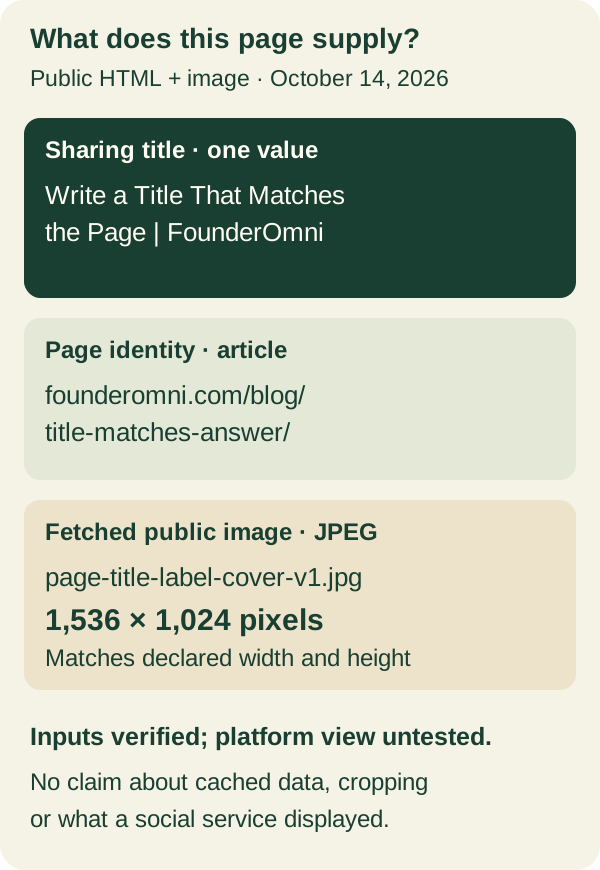
We inspected the returned public HTML for our page-title guide on October 14, 2026. Its Open Graph title was “Write a Title That Matches the Page | FounderOmni.” The visible main heading was “Write a Page Title That Matches the Answer Inside.” The wording differs, but both identify the same editorial task.
The response also supplied an article type, the guide's own URL, a description about reviewing a title against its answer, and an image address ending in page-title-label-cover-v1.jpg. We downloaded that public image and confirmed that it was a JPEG measuring 1,536 by 1,024 pixels. Those dimensions agreed with the width and height fields in the returned HTML.
That is a real page-and-file observation, not a Facebook, LinkedIn or messaging-app preview test. It establishes what our server returned and which image we checked. It does not establish a platform's chosen crop, cached information or displayed wording.
You can give a developer a similarly small request: inspect the exact page's returned HTML and list its sharing title, description, URL and image. Then open the image address itself. A preview that refers to another page is easier to investigate when these fields are recorded together.
Look for accidental duplication as well as missing information. A theme, SEO extension and page template may each contribute metadata. The protocol's array guidance gives the first value preference when repeated values conflict. Do not assume that every extra image is an error; intentional alternatives are possible. Investigate an old homepage image appearing before the article's intended image.
If the public response still has the old fields, correct the publishing path before repeatedly changing the sharing post. The CMS may have saved a revision without updating the public page. Our deployment check explains how to distinguish a successful response from the intended published content.
Review the image as an introduction to this page
Open the actual image, not just the website's hero. Some websites use different assets for their article header and sharing metadata. That can be sensible, provided the selected image introduces the same subject and does not imply an unrelated product or result.
In our example, the artwork shows hands attaching a label to a document case. It supports a guide about matching a label to its contents. The image is an editorial illustration, not evidence of a tested search-result improvement. The title and description carry the practical meaning; the artwork reinforces it.
When preparing your own asset, decide what should remain recognizable in a smaller view. Put the main subject where plausible crops leave it understandable, and keep any essential explanation in the accompanying words. A long headline embedded in the image can become hard to read when the preview is small or cropped.
You can make local crops to find obvious composition problems, but treat those as design exercises. A square crop you create is not proof that a particular platform will use that crop. The actual service preview remains the relevant observation for the post you intend to publish.
For a product announcement, an honest screenshot may be more useful than decorative art. Capture an authorized public or demo view, show the relevant feature clearly and remove private workspace details. If the interface is only a concept, label it as such. A polished mockup should not imply that customers can already use an unavailable feature.
Keep alternative text useful too. The Open Graph image properties include dimensions and an image description. Describe what the image contains rather than repeating a sales slogan. We checked both the image file and the text describing it in our example; a description alone does not establish that the file is accessible.
Check the service preview and the destination together
Once the public fields and image are correct, open the intended service's supported preview or composer and use the exact address you plan to share. Where a draft preview is available, review it without publishing. Record the service, URL and time so a teammate can reproduce the observation.
Check the task as well as the appearance. Does the title describe this page? Does the description add useful context? Does the image remain recognizable? Then follow the preview's link and confirm that it reaches the intended answer. A good-looking card pointing to a general homepage has not completed the handoff.
If the displayed information differs from the current response, keep both observations. The discrepancy does not automatically prove that your CMS change failed. The service may have retained an earlier observation or chosen different information. Check its current documentation or available diagnostic tool rather than assuming a universal refresh button or waiting period.
Do not keep adding random query parameters just to force a different-looking preview. First understand which URL you are sharing and whether its page identity remains consistent. If you deliberately version an image file, update the page's reference and verify that new file; changing a filename by itself does not show that a service has fetched it.
Use this compact handoff record:
- Page: exact public address and the useful answer expected after opening it.
- Inputs: sharing title, description, image address and any conflicting values found in the returned HTML.
- File: actual image format, dimensions and accessibility check.
- Preview: intended service, observation time and what its draft or diagnostic view actually displayed.
- Destination: result after following the link, plus the next repair if it differs from the page's promise.
Keep the record beside the launch draft. A field inspection, an image review and a platform preview answer different questions. Combining them gives the next person a specific problem to fix instead of another request to “make the social image better.”
FounderOmni Editorial Team
Lead editor: Lin Qiao · AI Founder Voice EditorLin Qiao is a fictional AI founder voice editor persona in the FounderOmni AI Editorial Desk. Her role focuses on clear, useful writing for founders and small teams. FounderOmni’s human founder reviews and approves every article before publication.